
Canva is an excellent online graphic creation platform where you can use available fonts on this tool, which might limit your creativity.
Wonder how to add fonts to Canva? This article will show you how to upload custom fonts to Canva in 3 easy steps. Keep scrolling down!
How To Add Fonts To Canva By Using The Font Menu?
Step 1: Download A New Font From Websites
There are a vast number of websites where you can find great fonts. Some of the best online platforms contain a collection of font styles, such as Google Fonts, Envato Elements, and Creative Market. etc.
Here are several steps to search for appropriate fonts on Google Fonts:
- To begin with, you go to the Google Fonts website and type the fonts you want on the search bar. You can also scroll down, browse recent fonts, and choose the one you want to try.
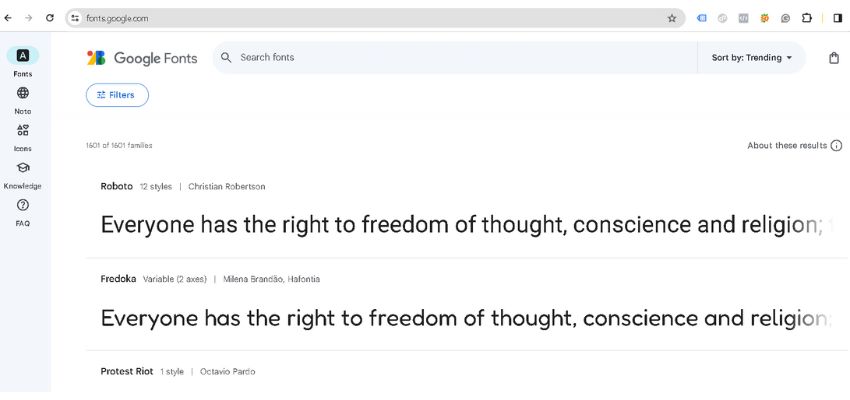
Google Fonts interface
- Once you select your desired font, click on the “Download” button (or “Download Family” button) on the right.

- Your font(s) will be downloaded immediately to your desktop’s hard drive as a zip folder or a single file. If you download a zip folder, you must extract it into different files before adding them to Canva.
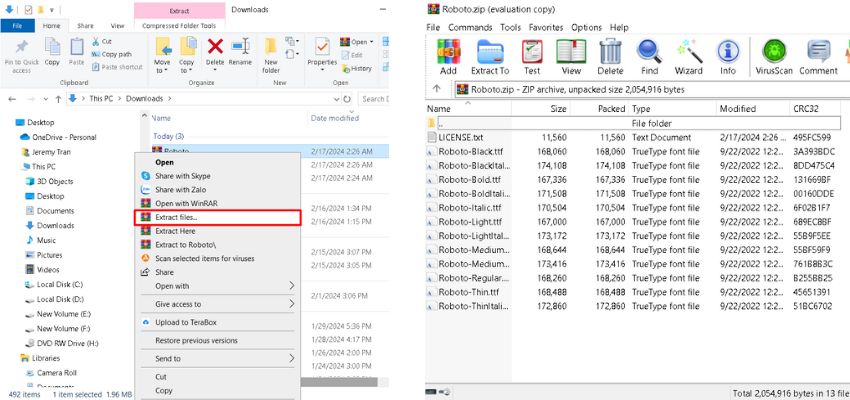
Step 2: Create A New Design
In the second step, you need to open up the Canva desktop. Then, choose the “Create A Design” button in the upper right-hand corner and specify the size you want to design your text.

After the working space appears, you can select the “Text” button on the left black column. To create a default sample text, click the purple box that says “Add A Text Box.” Next, click the font box above to open up all available fonts.

Step 3: Upload Your New Font On The Font Menu
To upload a font to Canva, click the “Upload A Font” button at the bottom of the font list. Once a file location shows up, you can choose formats like OTF, TTF, and WOFF. Additionally, confirm the following notice popping up by selecting the “Yes, upload away!” button.
You can see your uploaded font in the font list, and you may start executing your design. Like other fonts in Canva, you can change the size or color of the text to suit your requirements.

How To Add Fonts To Canva Within The Brand Kit
Step 1: Open The Homepage Side Panel
After you log in to your Canva account, you will be directed to the homepage side panel. In this area, you can browse more features of designs like docs, whiteboards, presentations, videos…
On the left side of the homepage screen, there is a side panel that displays many options such as “Home,” “Projects,” “Templates,” “Brand,” and “Apps.”

Step 2: Select “Brand” From The Options
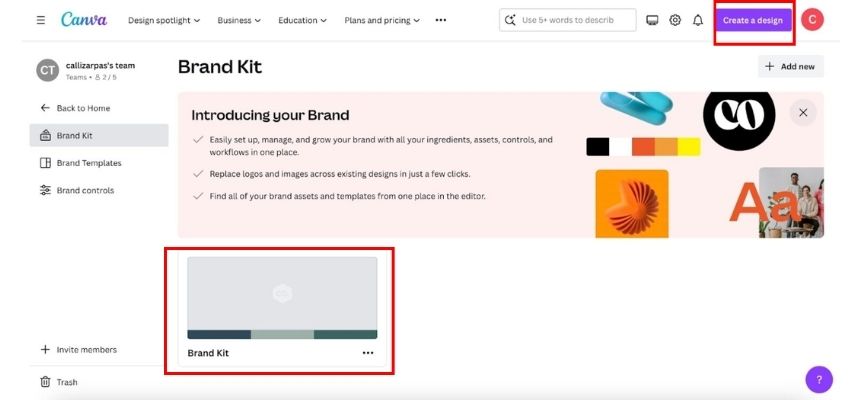
In this step, click the “Brand” option on the side panel, and your Brand Kit will open automatically. In the Brand Kit tab, you will see an introduction to your brand and some new options on your side panel, including “Brand Template” and “Brand Controls.”

Step 3: Pick A Brand Kit For Execution
Stay in the “Brand Kit” tab if you want to add your new fonts. There is an available brand kit in the middle screen and an option to create a new one in the upper right corner. At this point, you can either begin making a new brand kit or choose an available one provided by Canva for execution.
Step 4: Upload A New Font
Once you have your brand kit, you can scroll down to find the “Fonts” option or select the “Fonts” button on the sidebar. Then, click the “Add New” option in the top-right corner and choose “Upload A Font” from the dropdown menu. After that, you can find the font file from the file location popping up and upload it by clicking the “Open” button.

A notice of confirmation occurs afterward, so you need to confirm if you have chosen the correct font. Finally, you will wait for the upload process, and your ideal font is ready to use.
How To Add Fonts To Canva By Using Mobile Application?
Step 1: Install The Canva Mobile Application
To add new fonts to Canva on mobile phones, you must install the Canva application via the Google Play Store (for Android) and the App Store (for iOS). Next, you can browse the store for the Canva app or use the search bar.
After reaching Canva, choose the “Get” button to start downloading. If you use an iPhone with Face ID enabled, double-tap the Side button and then look at the screen to authenticate before downloading.

Step 2: Download Your Favorite Font On Your Phone
In the following step, you must download your ideal fonts on websites via your phone. You can use either Safari or Google Chrome to access some websites and choose the font you want.
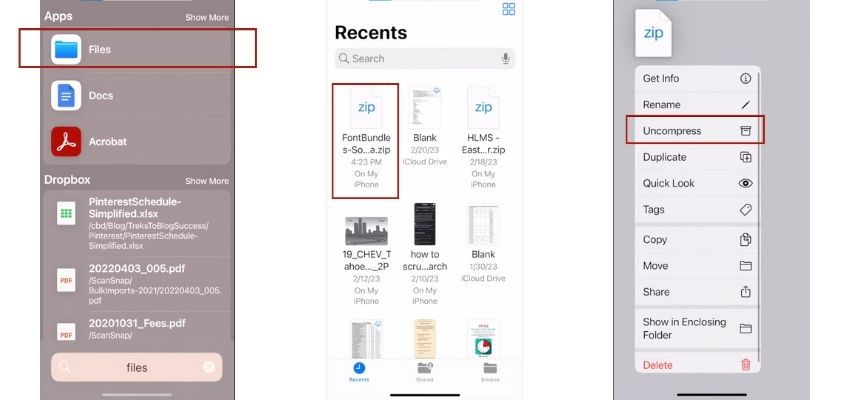
If you download a zip folder, you must extract it into small files before uploading them on Canva. Here are some steps of folder extraction for both IOS and Andriod systems:
- For IOS: First, locate the “Files” application on your iPhone and navigate to your recent zip folder. Next, you can extract it by clicking the “Uncompress” button. Once it is unzipped, it will show up in extracted files with font formats like OTF and TTF.
- For Android: To begin, open “Files” by Google Files and locate the zip file. After that, a pop-up appears displaying all files after you select the zip folder. Then, you tap the “Extract” button, and a list of extracted files appears.

Step 3: Choose “Brand Kit” On The Canva App
You open the Canva app and find the menu section by clicking on the white square with three short lines in the top left corner. It will show a side panel with various options like “Home,” “Projects,” “Templates,” and “Brand.”
In this case, you choose the “Brand” button, and a list of new choices appears, including “Brand Kit,” “Brand Template,” and “Brand Controls.” Next, you select “Brand Kit” and will be directed to brand kits. At this point, you can either create a new brand kit or choose an available one made by Canva.

Step 4: Upload Your New Font
After your brand kit, scroll down to reach the “Fonts” option and click on the “+” button on the right. A menu will show up at the bottom of your phone screen afterward, and you can start uploading your font by clicking “Upload A Font”.

Pick up a font by tapping it, and a confirmation announcement shows up immediately. You can continue choosing “Confirm” if that is the font you want and wait for the upload process.
Frequently Asked Questions
1. What Kind Of Canva Account Is Used To Upload Custom Fonts?
You need Canva Pro, Canva for Teams, Canva for Education, or Canva for Nonprofits. Otherwise, you cannot add your fonts if you use the free version of Canva.
2. What Types Of Font Files Are Supported In Canva?
Canva supports different font types like OpenType (OTF), TrueType (TTF), and Web Open Font Format (WOFF). You also need to ensure your fonts are licensed for embedding. Otherwise, they might not be allowed to upload.
3. How Many Fonts Can I Add To Canva?
You can add up to 500 fonts per brand kit to Canva.
Final Thoughts
Now that you understand how to add fonts to Canva step-by-step. With Canva, your creative images have a better chance to develop with beautiful font types. If you want to explore more marketing knowledge and expert tips to enhance your business, contact us now.