
Grammarly – a writing enhancer ensuring your work is perfect – is the ultimate tool to add to Microsoft Word. It’s super simple to do, and the benefits are worth it! You’ll never miss a typo or grammar mistake again.
But we often do our tasks on Microsoft Word. Then, how to add Grammarly to Word is the puzzling query of many people. No worries!
We provide 3 essential steps for you to get over this problematic situation. Embrace your writing journey now.

What is Grammarly?
Grammarly is an AI writing tool that offers grammar and spell checking, plagiarism detection features, and suggestions about writing clarity, concision, vocabulary, style, and tone.
This tool also helps writers identify and correct low-level mistakes in their written work and avoid accidental plagiarism.
Below is how Grammarly fixes your grammar errors:

Grammarly’s integration with Microsoft Word gives writers quick feedback on their grammar and helps them fix errors before they finish their work. This saves time, as there’s no need to switch platforms or run extra grammar checks.
Plus, Grammarly flags spelling mistakes throughout the document, eliminating the risk of overlooking errors.
3 Benefits Of Grammarly
Before jumping to how to add Grammarly to Word, here are nine compelling reasons why you should use Grammarly!
Grammarly Helps You Improve Your Writing Skills
Grammarly makes you a better writer by assisting you with eliminating spelling, grammar, and punctuation mistakes. Getting rid of these blunders makes your writing more transparent and allows you to communicate your message effectively.
As you can see in the image below, Grammarly can help you rewrite unfluent sentences, fix grammar errors, and improve the paragraph.

Grammarly Makes Your Writing More Concise
Not only does Grammarly fix errors, but it also helps you enhance the clarity and readability of your writing. The paid version of Grammarly (Grammarly Premium) suggests alternative word choices and sentence restructuring.
For example, it provides more lively word choices when you use a tired term or have written the same word more than once within a text block. It also ensures consistency in spelling and punctuation. See the illustration below.

Finally, it enhances your writing’s clarity by suggesting changes to your sentence structure or alerting you to a misused word.
Grammarly Is The Best Proofreading Software Available.
The review articles typically compare Grammarly to software like ProWritingAid, Hemingway Editor, and Ginger. And what’s the verdict?
Grammarly always seems to be at the top. Below are the reasons:
- Microsoft Word, Outlook, and Google Docs integrated.
- Real-time grammar and spell check.
- Availability on iOS and Android.
- Plagiarism checker feature.
8 Steps To Add Grammarly To Word
Here’s how to get Grammarly hooked up with Microsoft Word:
- Open Word.
- Go to ‘File‘.
- Click ‘Options‘.
- Choose ‘Add-Ins‘.
- Click ‘Get Add-Ins‘.
- Search ‘Grammarly.’
- Select ‘Grammarly for Microsoft Office.’
- Click ‘Add‘ or ‘Get it now‘.
- Grammarly will now appear as a sidebar.
But how can we add this tool to Word? See the three basic steps below:
Step 1: Download And Install Grammarly for Microsoft Word
- First, download the Grammarly software onto your computer.
- After the download is complete, open the installation file.
- Follow the prompts to install Grammarly on your device.
- Once established, open Microsoft Word.
- Locate the Grammarly icon on the toolbar and click on it.
- Log in to your Grammarly account, or sign up if you don’t have one.
If you follow these steps correctly, you will see the image below.
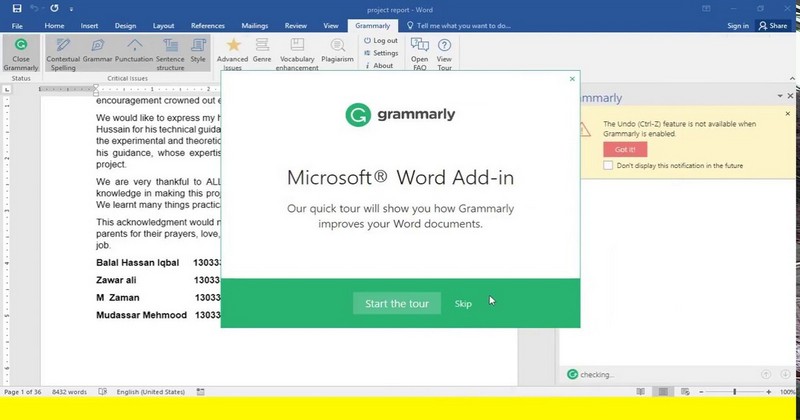
Now let’s see how you can download Grammarly from two different platforms.
Option 1: Download Grammarly Directly From The Official Website
- Go to the Grammarly website and click on the download button.
- Save the file on your computer and open it.
- Follow the instructions to install the software.
- Download directly from the official website to get the newest version and avoid security issues from third-party sites.

Option 2: Download Grammarly From The Microsoft App Store
Downloading Grammarly from the Microsoft App Store? Follow these steps for quick success!
- Open the Microsoft App Store on your Windows device.
- Type “Grammarly” in the search bar.
- Select the Grammarly app from the results.
- Then, click the “Get” button to download and install.

Now, Grammarly is ready for use in Microsoft Word. Sign in with your Microsoft account before downloading for an effortless experience. You can then easily access Grammarly across multiple devices.
Tip: Update Grammarly regularly to get the newest features and improvements. Now you can start writing
Step 2: Set Up Grammarly In Microsoft Word
To integrate Grammarly with Microsoft Word, follow these simple steps:
- Open Microsoft Word and go to the “Review” tab.
- Click on “Spelling & Grammar” in the “Proofing” section.
- In the dialog box that appears, select “Grammarly” as the writing assistant you want to use.
- Click on “Enable Grammarly” to activate the Grammarly add-in.
However, if your current Microsoft Word is 2010 version, you might caught the issue below.
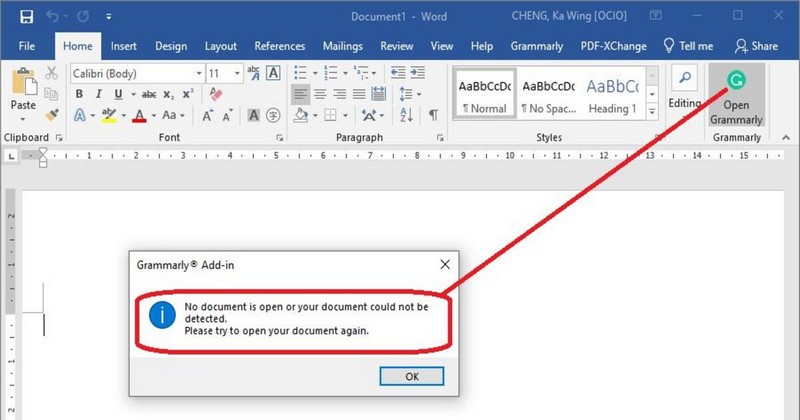
Image via eduhk
Let’s try to update your Microsoft Word version to 2016 or 2019 to avoid this confusing situation.
Step 3: Using Grammarly In Microsoft Word
To effectively use Grammarly in Microsoft Word, follow these six simple steps:
- Install the Grammarly add-in for Microsoft Word from the Microsoft Office Store.
- Open Microsoft Word and you will find the Grammarly toolbar at the top of the screen.
- Hit the “Review” tab and click the “Check Document” button.
- Grammarly will automatically check your grammar, spelling, and punctuation errors.
- As Grammarly identifies any errors, it will highlight them and provide suggestions for improvement.
- To accept a suggestion, simply click on the correction provided by Grammarly.

Note: If Grammarly does not appear in your Microsoft Office products, please see the article Grammarly for Windows and Mac doesn’t work in Microsoft Office products for system requirements and troubleshooting steps. We suggest trying the Grammarly Editor if your current Microsoft Office version is incompatible.
Frequently Asked Questions
Why Is Grammarly Not Showing Up In Word?
If the floating Grammarly widget does not appear in your Word, find the Grammarly icon in your system tray. Right-click on the Grammarly icon and select Settings. Click on Blocked Apps and Remove to permit Grammarly to run in Word, Excel, or PowerPoint.
How Do I Turn Grammarly Back In Word?
To turn Grammarly suggestions back on, you will need to open the Grammarly app and click Settings. Then select Access, and next to Microsoft Word, click ‘Remove’. Grammarly will appear again in Word.
How Do I Add Grammarly To Docs?
- Open a Google Docs on your browser.
- Click the Grammarly extension icon in the upper-right corner.
- Flip the Check for writing suggestions on Google Docs toggle switch to on.
- Now you can use Grammarly on Google Docs.
Now you know the way to go. Understanding how to add Grammarly to Word is no longer a confusing task. However, it is important to note that Grammarly improves grammar and spelling and provides style and tone suggestions to enhance your writing.
Reviewing and considering the suggestions provided is advisable when using Grammarly in Microsoft Word. These suggestions can significantly improve the clarity and correctness of your writing, ensuring that your document is error-free and professional. For further information about digital tools for marketers, visit ROI Digitally now!